
Assess Existing Cameras for Visual AI
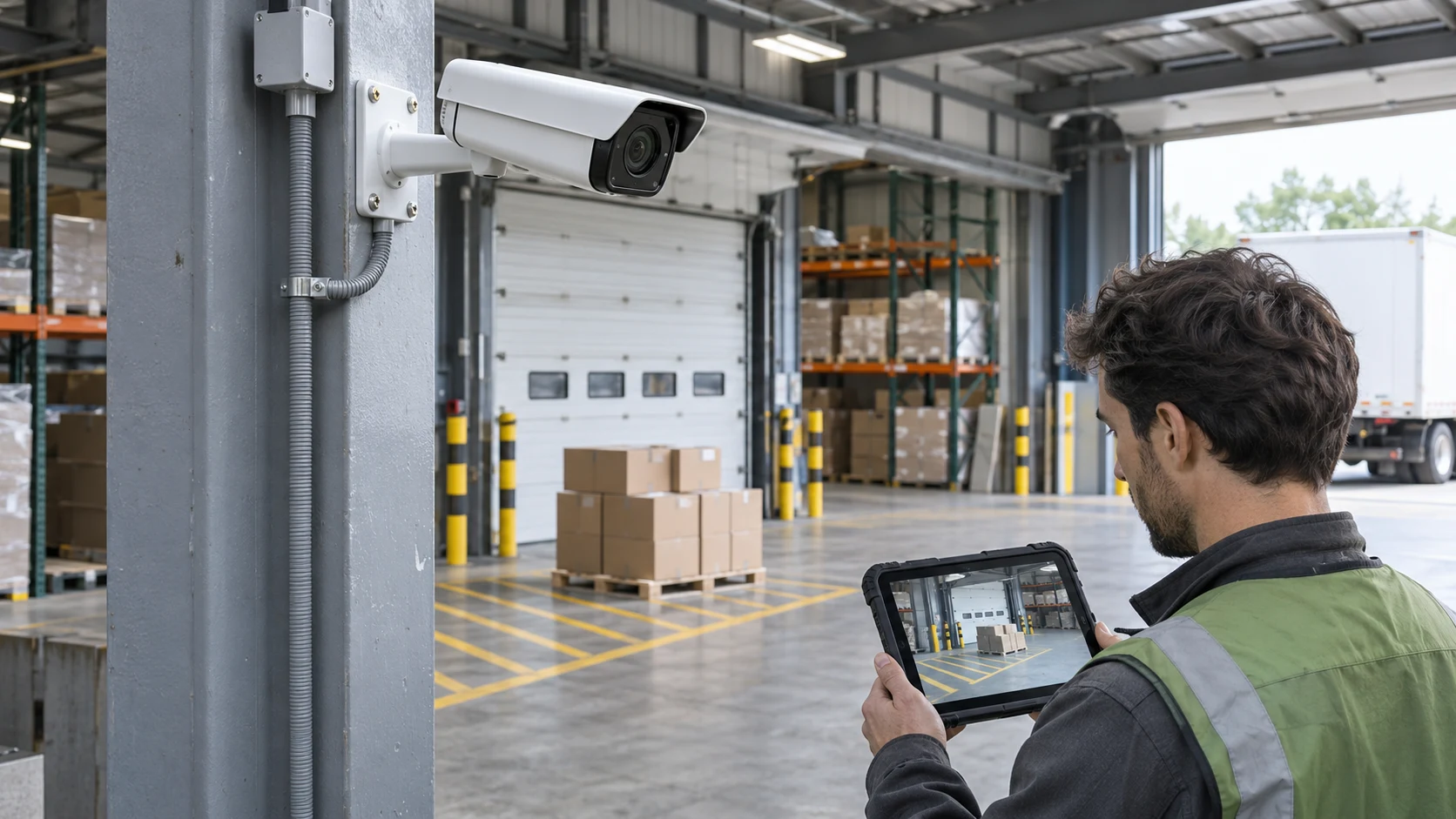
Reusing existing cameras for Visual AI may be practical when the camera view, video stream and processing setup match the task. A camera that records a loading area can still lack the detail needed to read a label or the viewpoint needed to observe a specific interaction.
The assessment starts with the event or information you need, then checks the actual images and the route by which they reach the analysis. This checklist helps teams decide what can be reused, what can be adjusted and where a different view or camera may be needed.
For the wider planning process, start with our guide to starting a Visual AI project, from use case to pilot.
In this article
Start with the Task and the Target
Describe exactly what the system should observe. A wide view may help assess whether a loading bay is occupied, while reading a shipment reference requires usable characters in the captured image. These tasks can demand different framing even at the same location.
- Target: name the object, marking, condition or event that matters.
- Location: identify the area and the approaches that must be visible.
- Timing: define when an observation becomes useful and who needs the result.
- Operating conditions: include relevant shifts, traffic, lighting and layout changes.
Our articles on OCR in logistics and AI for warehouse safety show why text recognition and vehicle-pedestrian event detection need their own assessment. Existing recording coverage is a starting point for that discussion.
Check Image Detail and Camera Position
Review the stream at the resolution and crop that the analysis will receive. Check whether the target stays visible at a usable size throughout the relevant part of the scene, including the far end of an aisle or the edge of a loading bay.
- Framing and distance: a broad overview can leave a small label or object occupying very few pixels.
- Viewing angle and focus: inspect the relevant surface or route with the actual camera and lens setup.
- Occlusion: look for racks, carried loads, parked vehicles or other objects that hide the event.
- Changes to the view: document zoom settings, PTZ presets, vibration and any routine movement of the camera.
Digitally enlarging an image does not recover detail that was never captured. Cleaning the camera window, correcting focus or adjusting the view may help, subject to the installation and its other requirements.
Axis’s overview of optimising video for analytics highlights the importance of installation conditions and image usability. The practical test is whether the chosen target is consistently observable in your environment.
Test Lighting, Exposure and Motion
A scene that looks clear when stationary may become difficult to use when a vehicle or package moves. Test the expected movement under the actual lighting, including bright entrances, reflections, shadows and changes between day and night.
Frame rate describes how often frames are available. Exposure time influences how much movement occurs during each capture. More frames alone do not guarantee sharp moving targets. Axis’s image quality troubleshooting guide explains how slow shutter speeds can create motion blur.
- Moving targets: check the relevant object or characters at normal operating speeds.
- Changing light: include glare, backlighting and the darkest conditions in scope.
- Day and night modes: confirm whether any switch to infrared or monochrome changes information the task depends on, such as colour.
- Consistency: record which settings and conditions produced each sample.
Agree changes with the team responsible for the camera and recording system, then verify the resulting footage. A setting suitable for one task may affect another requirement.
Verify Access to the Actual Video Stream
Confirm how the proposed analysis can receive video from the installation. A live view in a security application or an exported recording does not, by itself, describe the input available to another system.
- Access: arrange authenticated access through an agreed network path with the responsible IT team.
- Input settings: document the codec, resolution, frame timing and any main-stream or substream selection.
- Recording infrastructure: establish whether video comes directly from the camera or through an NVR or video management system, including any resizing or re-encoding.
- Continuity: test connection loss, reconnect behaviour, timestamps and how unavailable or stale video is reported.
ONVIF Profile T, for example, defines features for advanced video streaming. ONVIF also explains that conformance is tied to specific firmware or software versions. Check the relevant device and receiving client, their supported functions and the intended configuration.
Interoperability and image suitability answer different questions. A stream may connect successfully while the target remains too small, blurred or hidden for the AI task.
Check Network, Processing and Operational Control
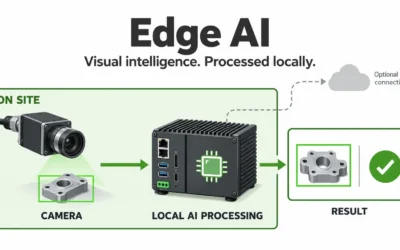
Reusing a camera does not determine where the AI will run. A project may process video on local hardware, a server or a cloud service, depending on its agreed architecture. Processing inside a camera requires its own supported device and application capabilities.
Assess the workload using the chosen streams and analysis settings. Consider the number of cameras, video resolution, analysis rate, transport delay and available computing resources. Our article on why Edge AI matters explains the role of processing near the source.
Agree who can change camera settings and how those changes will be tracked. A moved camera or altered stream can affect the tested workflow even when the hardware remains the same.
Review the purpose of processing, access permissions, retention and information sharing with the responsible teams. Reusing an installation still calls for assessing the proposed use of its data. For related provider considerations, read about German-hosted AI, data protection and control.
Run a Practical Camera Readiness Test
Choose one defined task and test the complete path from capture to the result that the workflow needs:
- Inspect the real input. Review representative frames or clips from the stream intended for analysis.
- Include ordinary and difficult cases. Test the event, similar activity that should not trigger it and the relevant lighting, movement and obstruction conditions.
- Review the outputs. Compare results with checked observations, recording false alerts, missed events, unusable inputs or incorrect field reads as appropriate.
- Measure useful timing. Include capture, transport, processing and delivery to the person or system receiving the result.
- Document the setup. Save the camera position, stream configuration, tested conditions and agreed acceptance criteria.
For example, a view may be sufficient to assess bay occupancy while providing too little detail to read the identifier on the vehicle. Evaluate each requirement separately. Our article on Visual AI in supply chain management shows how these observations can support different decisions.
Reuse, Adjust, Add a View or Replace
- Reuse: the current view, stream and processing path meet the agreed criteria for the tested task.
- Adjust: a defined change to focus, framing, lighting or settings can be tested while respecting the camera’s other uses.
- Add a targeted view: the overview remains useful, but a separate viewpoint is needed for detail or coverage.
- Replace: the hardware or supported input cannot meet the requirement under the assessed conditions.
Record the evidence behind the decision and retest after any change. Where the event remains unobservable or the response is impractical, changing the use case may be more useful than extending the installation.
Review Camera Readiness with airis:net
A useful discussion with airis:net starts with the task and representative footage. Prepare the camera model and firmware, its position and view, the relevant stream settings, the operating conditions and the result your team needs.
Include the intended response, existing recording requirements, available processing and network resources, and the people responsible for access and configuration. These inputs help scope a tailored Visual AI project and identify what needs testing before a wider deployment.
For the full project approach, return to our guide on moving from a Visual AI use case to a pilot. For other applications of the technology, explore airis:ident’s identity verification services and airis:protect’s image and video content analysis.
FAQ
Can existing CCTV cameras support Visual AI?
Possibly. The camera must provide a usable view and an accessible video stream for the selected task. Image detail, viewing angle, lighting, motion, connectivity and the receiving software all need assessment with representative footage.
Do I need a 4K camera for Visual AI?
There is no universal resolution that guarantees suitability. What matters is whether the relevant object, marking or event appears with enough usable detail in the stream supplied to the analysis. Distance, framing, focus, motion and compression also affect that detail.
Does a higher frame rate remove motion blur?
Not by itself. Frame rate concerns how often frames are available, while exposure time influences how much movement occurs during each capture. Test moving targets under the expected lighting conditions and assess both timing and image sharpness.
Is ONVIF conformance enough to confirm compatibility?
ONVIF profiles define interoperability features for conformant devices and clients, with conformance tied to specific firmware or software versions. Verify the relevant profile and supported functions on both sides. This does not establish that the images are suitable for a particular AI task.
Can Visual AI detect objects hidden behind racks or loads?
An object fully hidden from every available camera view cannot be assessed from those images. Changing the viewpoint or adding a targeted view may help, but an unobserved area remains a limitation.
Does the AI have to run inside the camera?
No. Depending on the agreed architecture, a camera may supply video to local processing hardware, a server or a cloud service. Processing inside the camera is a separate capability that depends on the device and supported application.
What should I prepare for a camera readiness assessment?
Prepare the camera model and firmware, its position and field of view, the stream settings, representative footage and the target event or data field. Include difficult operating conditions, processing and network constraints, and the response timing the workflow needs.